

Creative Groups
Creative groups are a sub-level of Campaigns. Each campaign contains one or more creative groups, which in turn contain the individual creatives. Creative groups let you organize creatives and assign targeting attributes for categorization and reporting.
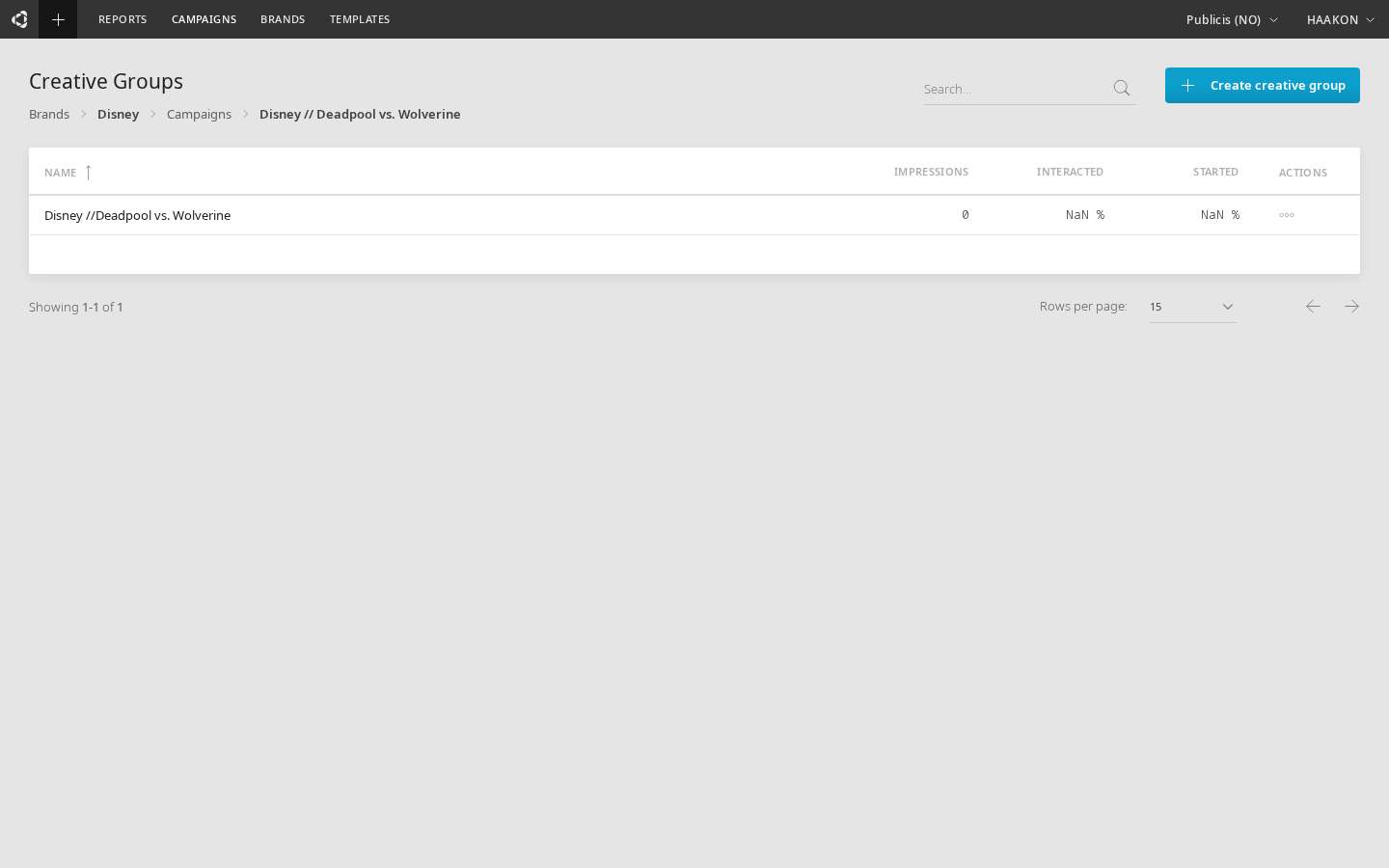
Table columns
| Column | Description |
|---|---|
| Name | Creative group name (click to view its creatives) |
| Impressions | Total ad impressions (click to open a report) |
| Interacted | Percentage of impressions that led to an interaction (click to open a report) |
| Started | Percentage of impressions that led to starting a conversation (click to open a report) |
| Actions | Opens the actions menu |
The table supports search by name, sorting, and pagination.
Creating a creative group
Click Create creative group to open the creation form. Fields include:
- Name — required
- Enterprise — the enterprise this group belongs to
- Workspace — the workspace
- Brand — the brand
- Campaign — which campaign the group belongs to
Actions menu
Click the actions button on any row to access:
| Action | Description |
|---|---|
| Edit | Edit the group name and organization (enterprise, workspace, brand, campaign) |
| Clone | Create a full copy of the group including all its creatives. You'll be prompted for a new name. |
| Delete | Soft-delete the group and all its creatives. Deletion is blocked if any creatives are currently being delivered. |
Soft delete
Deleted creative groups can be restored from the Trash. All nested creatives are soft-deleted together and can be restored as a group.
Moving a creative group
When editing a creative group, you can change its campaign. If the new campaign is under a different brand or workspace, the group and all its creatives are automatically moved.
Bulk tag export
Click Export tags in the actions menu for any creative group to open the Bulk Tag Export dialog. This lets you publish and export ad tags for multiple creatives at once without going into the Builder.
Selecting creatives
The dialog lists all creatives in the group. Use the checkboxes to select which creatives to include. Only published creatives can be selected for export — unpublished ones are shown with an "Unpublished" label.
Use Select all to select every published creative in one click.
Publishing
Each creative shows a Publish or Republish button next to its name:
- Publish — builds and deploys the creative for the first time. After publishing, the creative becomes available for tag export.
- Republish — rebuilds an already-published creative with its current settings. Republishing a creative that is live in a campaign will take effect immediately.
You can also publish all formats of a multi-format creative at once using the group-level publish button, or use Publish all in the dialog footer to publish every unpublished creative in the group.
WARNING
Publishing or republishing a creative that is running in a live campaign takes effect immediately. A confirmation prompt is shown before each publish action.
Delivery settings
The dialog lets you configure delivery settings for exported tags. Settings are organized into collapsible sections and are applied in the following order of priority:
| Tier | Description |
|---|---|
| Per-format override | Custom settings entered for one specific format variant |
| Group override | Custom settings applied to all formats in a multi-format creative |
| Global override | Settings entered in the global panel at the bottom of the dialog, when the Override delivery settings toggle is on |
| Saved settings | Each creative's own delivery settings as last saved in the Builder |
By default the dialog uses each creative's own saved delivery settings. The Override delivery settings toggle at the bottom activates the global panel, which then applies to all creatives that have no per-format or group override.
Per-format and group overrides
Per-format and group override panels expose the full set of delivery settings, organized into three collapsible sections:
| Section | Settings |
|---|---|
| Click-through | Clickable background (with URL), Clickable header (expandable formats only, with URL) |
| Configuration | Click macro (DSP), Impression pixel tags, Impression pixel URL |
| Customisation | Container z-index (non-banner only), Goal time, Bubble trigger (expandable only), SPA, Use on load, Advantage, VAST (video only), VPAID (video only), SafeFrame |
Settings are context-sensitive — certain fields only appear when relevant to the creative's format type. For example, VAST and VPAID options only appear for creatives that contain a video block. See Creative Delivery for a full description of each setting.
Global override
The global override panel applies a subset of universal settings to all creatives without a local override:
- Click macro (DSP)
- Impression pixel tags and URL
- Use on load
- Advantage
- SafeFrame
TIP
The global override intentionally excludes format-specific settings like clickthroughs, z-index, and video options. Use per-format or group overrides for those.
Each creative row shows the DSP currently saved against it, and a settings icon if other delivery settings are configured. An indicator dot appears next to any creative that has an active local override.
To enter a per-format or group override, click Override next to the creative or multi-format group. Once an override is active, a Save to creative button appears inside the panel. Clicking it writes the override back to the creative's saved delivery settings so the same settings are used by default on future exports. For group-level overrides, a confirmation prompt confirms the save before applying it to all formats in the group.
TIP
Saving delivery settings from the export dialog is the same as saving them in the Builder's Delivery tab. You can use the export dialog as a quick way to configure and persist delivery settings for many creatives at once.
Exporting
Once creatives are selected and published, use the footer actions:
| Action | Description |
|---|---|
| Copy tags | Copies all selected tags to the clipboard, each labeled with its creative name and format |
| Download ZIP | Downloads all selected tags as individual .txt files in a ZIP archive |
| Download CSV | Downloads a CSV file with creative names and their corresponding tags |
Fullscreen mode
Click the fullscreen icon in the top-right corner of the dialog to expand it to fill the entire screen. This is useful when working with creative groups that contain many formats. Click the icon again to return to the standard dialog size.
Group navigation
Use the arrow buttons on the sides of the dialog to navigate to the previous or next creative group in the campaign without closing the dialog.
Other functionality
- Clicking a group name navigates to its creatives
- Clicking Impressions, Interacted, or Started opens a filtered report for that metric
- Breadcrumb navigation shows: Brands > Brand > Campaigns > Campaign